Introducing the Superwall Figma Plugin
Take Figma designs and make them live, interactive paywalls in production with just a few clicks.

For many teams, the gap between making designs and getting those implemented often feels large. Designers will craft beautiful paywalls in Figma, but someone else on the team has to spend more time rebuilding them in our paywall editor. With our new Figma Plugin, that gap is gone.
Now, you can bring your Figma designs using Auto Layout directly into Superwall's editor with one click!
Quick links:
Prefer to watch instead? Check out our YouTube introduction:
One-click imports
Once installed, you can select any frame and instantly import it to Superwall. Each component comes over individually, preserving your design structure and layer hierarchy. That means you no longer have to spend extra time exporting assets, or rebuilding layouts over again.
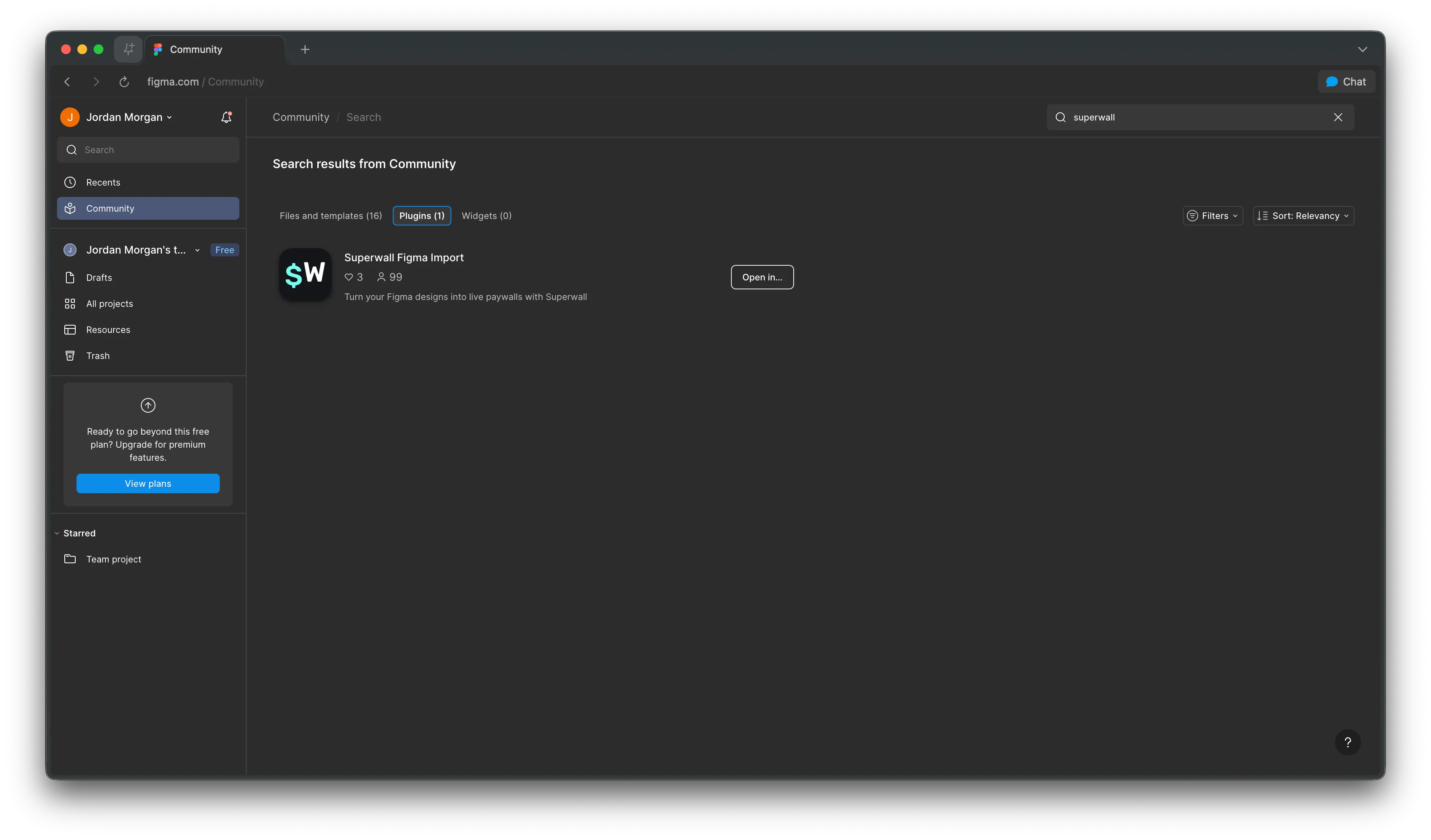
Here's how it works:
- Open Figma and run the Superwall Figma Import plugin.
- Select the frame you want to export.
- Click to import, and your design lands in Superwall's editor.
The only requirement? Your designs need to use Figma's Auto Layout. If you
haven't enabled it yet, just select your frame and press Shift + A to get started.
Multi-page paywalls
Building an onboarding flow or a multi-step paywall? The plugin can handle that, too. If you select more than frame, then in the import screen you can choose which frames should link together. During the import, Superwall will intelligently place them all inside a Navigation component:
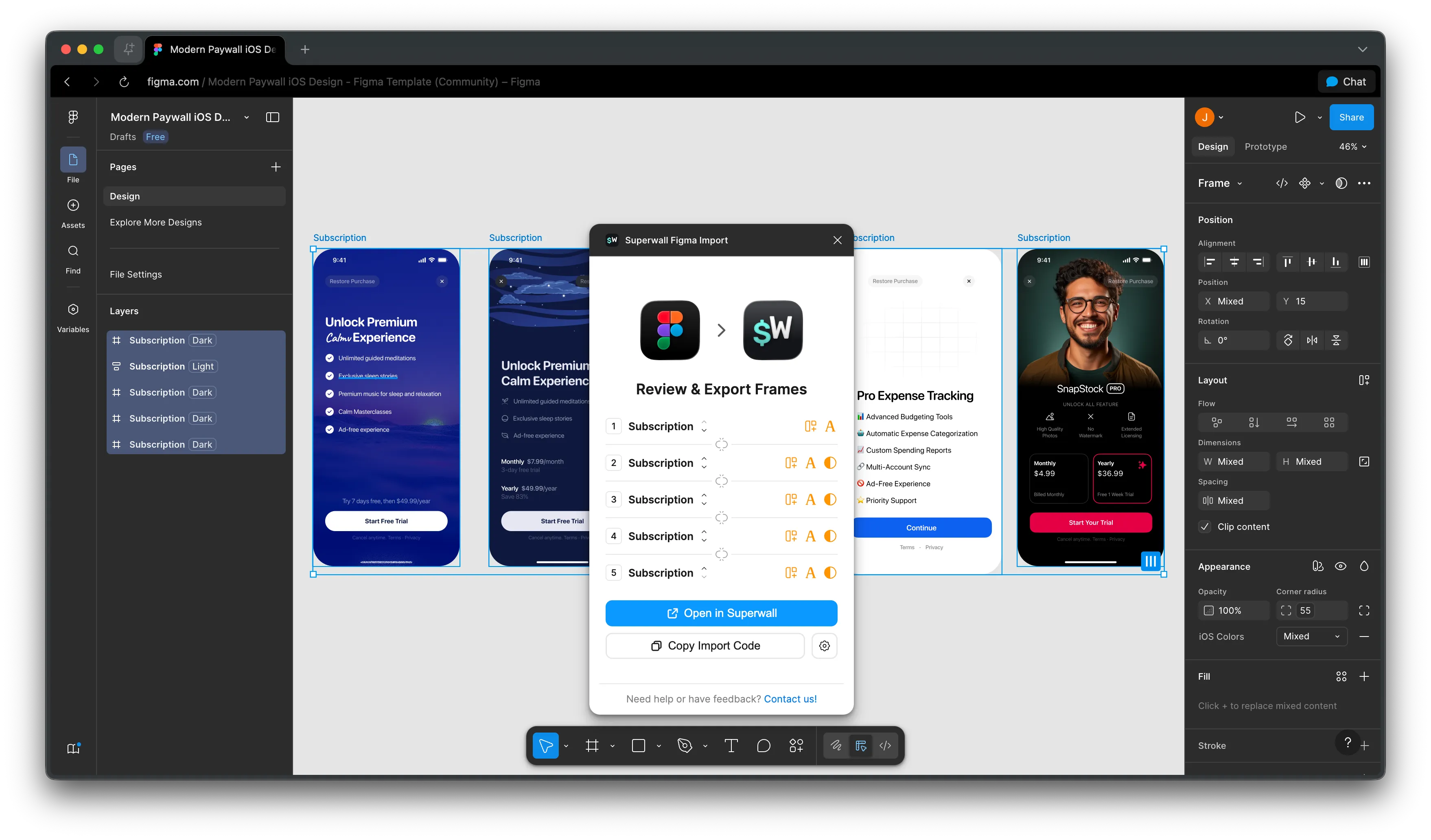
This means you can design entire paywall flows in Figma. Whether it's a set of new welcome screens, onboarding flows, or a step-by-step paywall, all of it will import in one go. No need to stitch things together manually in the editor.
Customizing your import
Every design is different, so we've added several options to fine-tune how your Figma frames translate into Superwall components. We've selected sensible defaults out of the box, but you're free to tweaks things as you see fit. As of today, you can toggle these settings:
- Use Image Elements: Export rectangles with image fills as Image elements instead of stacks with background-image.
- Relative Parent Positioning: Parent containers with absolutely positioned children get relative positioning for proper nesting.
- Use Fixed Positioning: Use fixed positioning instead of absolute positioning for manually positioned elements.
- Only Explicit Absolute: Only apply absolute/fixed positioning to elements explicitly marked as absolute, not to auto-positioned elements in non-auto-layout containers.
- Always Fill Viewport: Force selected frame to fill entire viewport. When disabled, uses the frame's actual dimensions from Figma. This is only recommended for importing single components and elements.
All of these settings live right in the plugin panel, so you can adjust them on the fly per import. Your choices will persist between them, though, so no need to set them each time.
Wrapping up
With the Superwall Figma Plugin, your design workflow just got a whole lot faster, easier, and accessible. Design in Figma, import with one click, and start iterating in Superwall's editor immediately. There's no more back-and-forth, or rebuilding layouts from scratch.
The plugin is live today in the Figma Community. For a full walkthrough, check out our documentation. And if you're new to Superwall, go create a free account to get started.